Diagnose spoken replies that have no sound
A silent answer is not always a speaker failure. Some assistants can display text while spoken replies are disabled, and a connected accessory can receive audio you expected from the phone. Establish whether the response was generated before changing microphone permissions.
Check whether there is an answer to play
Send a short text request: “Reply with the words: audio check complete.” Watch whether a text answer appears. If there is no answer, the problem is generation, connectivity or session state rather than simply playback. If text arrives, you have a working request path to investigate separately.
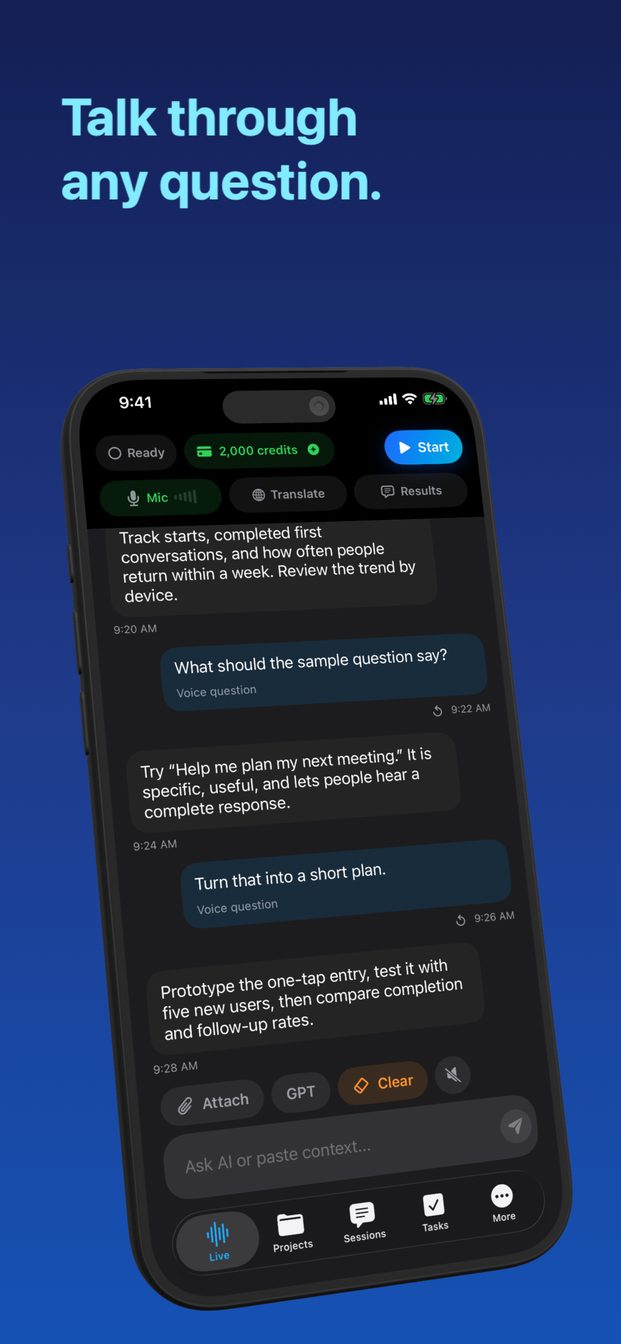
In GPT Realtime Assistant, spoken assistant output is a selectable behavior. Do not assume every response is automatically read aloud, and do not confuse translation speech with general assistant speech. Inspect the controls available in your installed version instead of looking for a voice option shown only in a newer build.
Test the phone’s audible output separately
End the session and play a familiar, non-sensitive sound in another app. Adjust volume while sound is playing, then check the intended destination. If ordinary audio also fails, follow Apple’s speaker troubleshooting guidance. Avoid repeatedly increasing volume when a disconnected or distant accessory might suddenly reconnect.
A useful baseline is the phone speaker at moderate volume with Bluetooth accessories disconnected. It is a diagnostic condition rather than a recommendation to use the speaker for private content. Once ordinary playback works, return to the assistant and repeat the same short request.
Distinguish generation, playback and routing
A visible response with spoken output disabled needs a settings change. Spoken output enabled with audio going to headphones needs a route correction. A reply that begins and then stops when you speak may be turn interruption. A reply that never starts despite other audio working may require app-specific investigation.
Keep a small record: text present or absent, speech setting on or off, selected destination, and what was heard. “Text present, speech enabled, speaker selected, no sound” is a reproducible report. “The microphone is broken” is not supported by that particular symptom.
Try a controlled recovery sequence
End the current conversation, choose the intended playback destination and start a fresh session. Send the same text request again. If available, try the app’s individual response playback control to compare replay with live speech. Only use controls your version actually provides.
Next try a different output route, such as known-working headphones. If headphones work but the speaker does not, focus on route or speaker handling. If neither works while other apps are audible, report the assistant’s playback failure. Restarting may clear transient state, but record the original conditions first.
Keep the fallback usable
Continue with readable text when that path works, particularly for names, numbers or instructions you need to verify. Do not keep a silent live session running simply because it looks connected. End it and confirm the session has stopped before switching tasks.
When contacting support, include whether the answer existed as text and whether the failure happened only with assistant replies or also translations. Those details distinguish settings, generation and audio problems. This guide proposes checks; it does not establish that a particular device has a hardware fault.
FAQ
Does Silent mode explain every missing AI reply?
No. App audio behavior and output routing differ. Test ordinary playback and the assistant’s speech setting rather than assuming one switch explains everything.
Why can I hear translations but not assistant replies?
They may use different speech settings or playback paths. Inspect general assistant output separately from translation speech.