How to Use a Live AI Voice Assistant Hands-Free in the Car (Bluetooth)
A thirty-minute commute is enough time to rehearse a keynote, clear your weekly task backlog, or practice Spanish—provided you never have to touch the screen after pulling out of the driveway.
Setting up eyes-free car Bluetooth audio before shifting out of Park
Car head units route bidirectional voice audio using Bluetooth Hands-Free Profile (HFP), the same channel used for phone calls. Starting your session before driving ensures audio routes cleanly through your steering-wheel speakers and cabin microphone.
- Mount your iPhone securely and connect to your car's Bluetooth audio while parked.
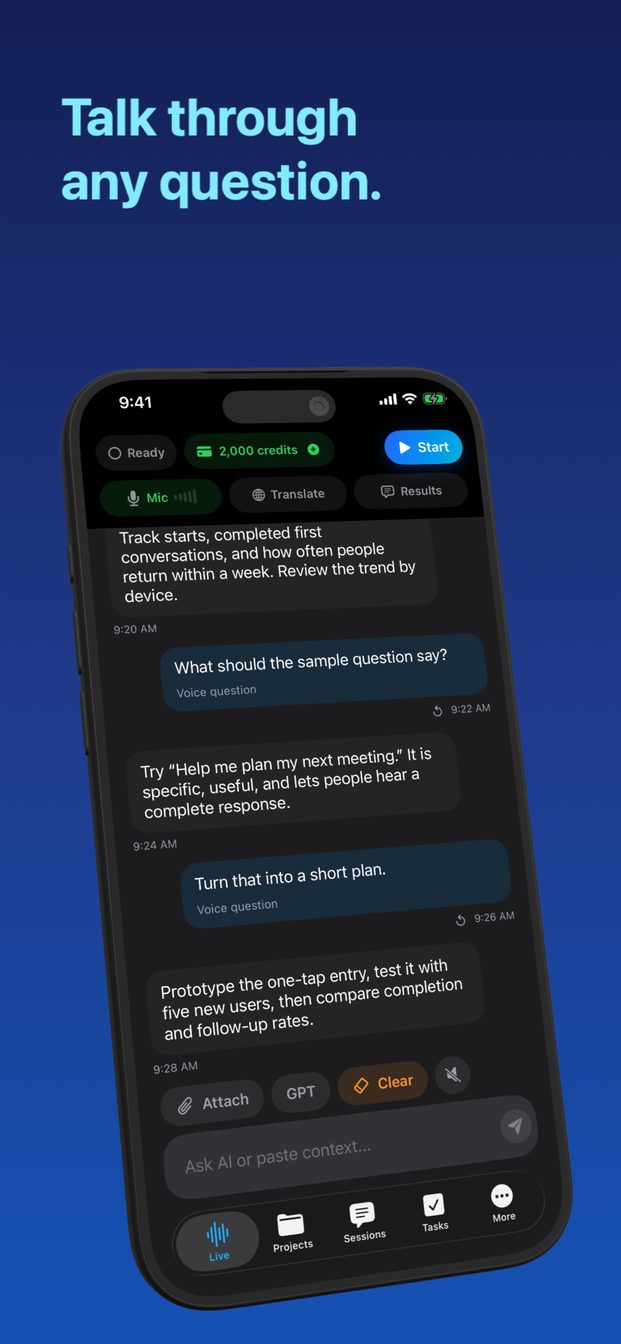
- Open GPT Realtime Assistant, select a Project and template (Brainstorm, Interview, or Language Practice), and set reply length to Brief.
- Tap Start once, confirm you hear the assistant over the car speakers, and lock your eyes on the road.
- Speak naturally—semantic turn detection waits through normal thinking pauses, and speaking interrupts any long answer automatically.
- Tap End only after parking; your full transcript and extracted ideas remain saved on-device.
Best commute workflows that require zero screen glances
Ask the assistant to interview you one question at a time: walking through tomorrow's client pitch, triaging five overdue tasks into concrete next steps, or running a 15-minute French travel dialogue.
FAQ
Why does car Bluetooth sound slightly narrower than music playback?
Whenever any app uses the cabin microphone simultaneously with speakers, Bluetooth switches from stereo A2DP to bidirectional HFP voice mode—which prioritizes low latency for live conversation.
Will a pause at a traffic light cut off my thought?
Semantic voice detection listens for completed meaning rather than a short silence gap, reducing premature interruptions.