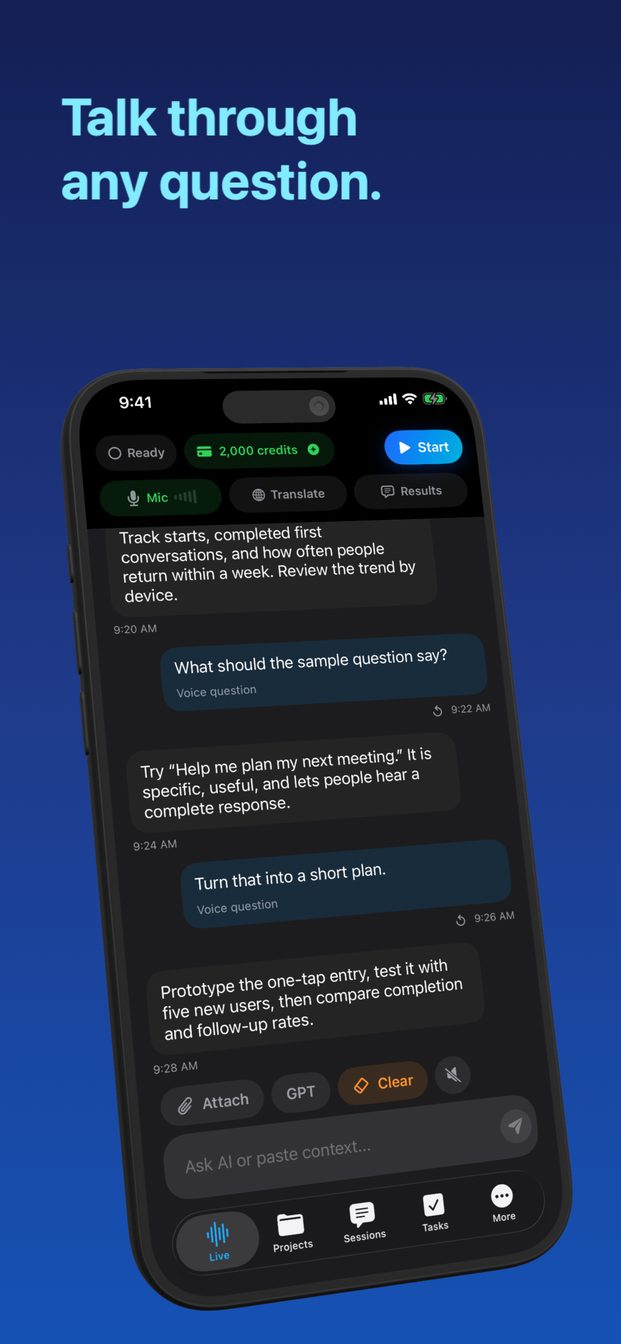
Talk to an AI assistant hands-free, by voice
Start a live session and talk: the assistant hears you, answers each turn by itself as text beside the transcript, and stops its reply the moment you start speaking again. Hands-free here means without typing, not with the phone in your pocket — the app has to stay open and the screen on for the whole conversation.
What a live voice conversation is
A session in GPT Realtime Assistant is a conversation you start and end yourself. Tap Start (Start Session on iPad and Mac) and the microphone is open: what you say appears as a transcript, and the assistant's answer appears beside it. You do not press anything between questions. The assistant answers each turn by itself, so the rhythm is closer to talking to a person than to dictating into a search box.
It is one conversation, not a string of separate commands. A follow-up such as “and the second one?” or “shorter, please” is taken in the light of what came before, as it would be by a person who had been listening.
It runs on iPhone and iPad with iOS or iPadOS 26 or later, and on a Mac with Apple silicon and macOS 26 or later.
Starting one, step by step
Less than a minute, most of it spent deciding where to put the device.
- Open the app and start a new session. For general questions, a session with your own instructions is enough; a template helps when the conversation has a purpose, such as Coding Task or Interview.
- Choose the Detail Level: Brief, Balanced or Detailed. Balanced is the default.
- Check that Translate is off. Translation is an app-wide setting that stays on until you switch it off, and while it is on, everything you say is translated from one language into another.
- Stand the device up where you can read it without picking it up: in a stand on the desk, propped against the wall behind the worktop, on the arm of the sofa.
- Tap Start and ask your question the way you would ask a person.
- Tap End when you have finished. The conversation stays in the session's history, on the device.
Interrupt it by speaking
When you start speaking, the assistant stops its current reply. That is the whole mechanism, and it is what makes a voice conversation usable: you do not have to wait out an answer that has gone in the wrong direction, and you do not have to find a button to cut it short.
Use it the way you would with a person who has misunderstood the question. “No, I meant the train, not the flight.” “Just the number.” “Skip the background — what do I do now?” The assistant takes the correction and carries on from there.
The microphone hears the room, not only you. Another person talking nearby, or a television, reaches it the same way your voice does, so a quiet corner makes for a cleaner conversation than a busy kitchen.
Brief, Balanced or Detailed
The Detail Level setting decides how long the answers are. It matters more in a spoken conversation than in a typed one, because you asked with your voice and are now reading the answer at arm's length, often while doing something else.
You can also ask for a shorter or longer answer in the moment — “in one line”, “explain that properly” — without changing the setting.
- Brief: the shortest answers. Right for quick back-and-forth, for a fact you need while your hands are busy, and for anything you want to take in at a glance.
- Balanced: the default, between the two. A reasonable choice when you do not know yet what the conversation will be.
- Detailed: for when you are sitting down and want the reasoning, the steps or the options laid out in full.
Keep the screen on
This is the rule that catches people out. A live session ends when the app goes to the background or the screen locks: the app shows “App inactive. Realtime session closed.” and stops listening. Checking a message in another app, or letting the phone lock itself on the table, ends the conversation.
That is also why hands-free here does not mean hands-free while driving. The answers are on the screen, and reading a screen is not something to do at the wheel.
For anything longer than a quick question:
- Set Auto-Lock to a longer time in the device's Settings while you are using the app, and set it back afterwards.
- Plug the device in for a long session. An open microphone and a lit screen use more battery than a phone lying idle.
- If the session does close, go back to the app and start it again. The transcript so far is kept in the session.
When you cannot speak out loud
Some places are wrong for talking to a phone: a quiet carriage, an open-plan office, a room where someone is asleep. Type instead. The box that says “Ask AI or paste context…” takes the same questions, and the answers come back the same way. It is also the place to paste something long — an email, a set of instructions, a paragraph you want explained — which is quicker than reading it aloud.
Mic turns the microphone off and on, for the moment when you want to keep the session open but not have it listening.
By default, OpenAI's model hears the audio. Under Listening you can choose Apple Speech instead: your words are transcribed on the device, and the text is sent to GPT for the answer. It changes where the transcription happens; the answer still comes from the cloud.
If the answers are hard to read from where the device stands, Settings › Appearance › Chat Font Size in the app goes up to Extra Large, on top of the text size set for the whole device.
What it is, and what it is not
It is a conversation partner that answers questions, explains, drafts and thinks things through with you, by voice. It is not a replacement for Siri. It cannot control the phone: it does not set timers or alarms, send messages, make calls, open apps or change settings. It answers; you act.
It does not wait in the background to be called, either. It listens only while a session is open on the screen in front of you, and the session ends when you tap End or leave the app.
Cloud sessions need an internet connection. During one, the audio goes from the device straight to OpenAI's Realtime API; the session is stored on the device; Arte Soft's servers never receive the audio, transcripts or answers. The only way to run a session without a connection is a local session on an Apple silicon Mac, with models downloaded once in Settings.
The app is free to download, and sessions need a subscription; cloud sessions spend credits on the audio and text they use, which the guide on what a session costs explains. And an answer is not a fact until you have checked it. For anything that matters — a dose, a deadline, a legal question — use the answer to know what to ask, and ask someone qualified.
Can I interrupt the assistant while it is answering?
Yes. When you start speaking, it stops its current reply, so you can correct it or change the question without pressing anything.
Does it keep listening with the screen locked or the app in the background?
No. A live session ends when the app goes to the background or the screen locks. Keep the app open and the screen on, and plug in for long sessions.
Can it set a timer, send a message or open an app?
No. It is not a replacement for Siri and cannot control the phone; it answers questions within the conversation.
Does it work without an internet connection?
Cloud sessions need a connection. The only offline option is a local session on an Apple silicon Mac, using models downloaded once in Settings.