A five-minute checklist for testing voice AI on a phone
Before an important conversation, run a small test that can reveal where failure occurs. A connected indicator alone is not enough. Verify text requests, captured speech, audible replies and the actual task separately, using synthetic material that is safe to repeat or share with support.
Prepare a neutral baseline
Choose a quiet location, a stable internet connection and the output route you intend to use. Start with the phone’s built-in route if you are investigating a fault; add headphones after that baseline works. Keep a brief note of app version, device and network so a later comparison is meaningful.
The public iPhone/iPad release of GPT Realtime Assistant uses online sessions. This checklist does not establish that mobile offline or Private Cloud Compute features are in your installed release. Read the controls you actually have rather than relying on a screenshot from a development build.
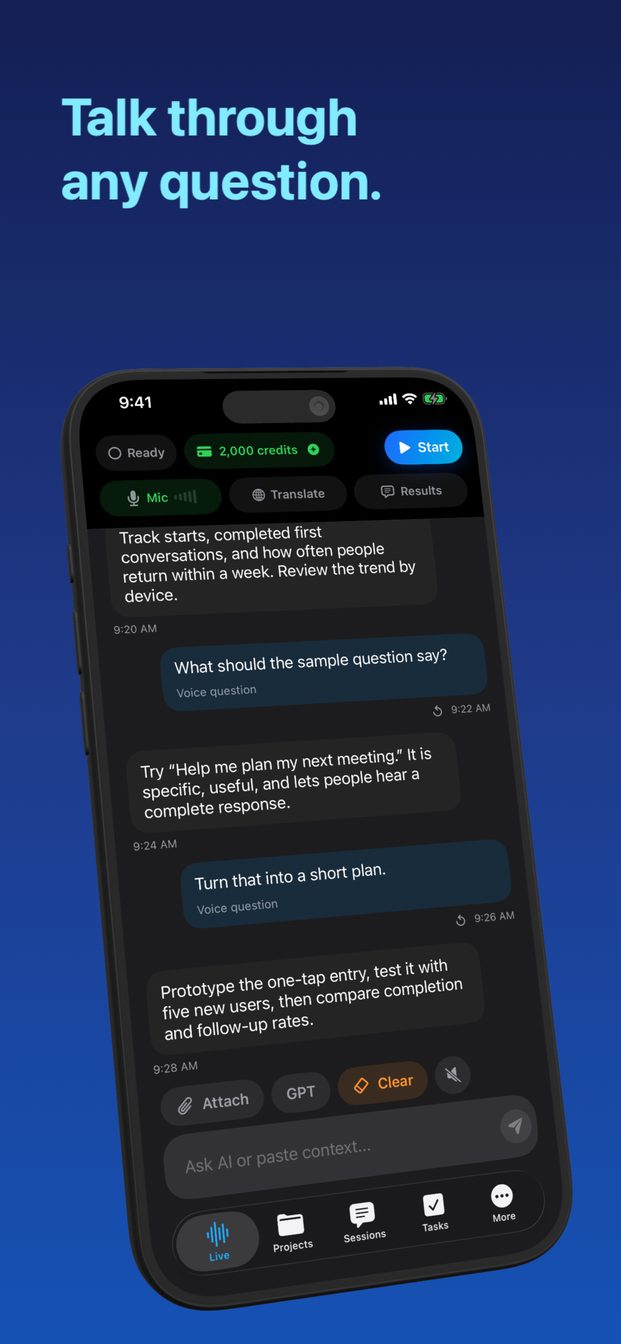
Check text before the microphone
Type “List the words amber, maple and river in alphabetical order.” The expected result is amber, maple, river. This simple request checks that you can submit a task and receive a visible answer without speech capture complicating the result.
If text fails, preserve the displayed error and check connection or service access. Do not spend time changing microphone settings for a request that never used the microphone. If text works, you now have a useful fallback and a baseline for subsequent tests.
Check capture and output as separate tests
Speak “Input check: the red book is on shelf eight.” Inspect the input text and note whether the color, object and number survived. Minor punctuation is less important than meaning. If there is no input, review microphone permission and compare a Voice Memos recording.
For output, enable spoken assistant replies where your version provides that control, then send a short text request. Listen at moderate volume on the intended destination. A correct transcript without audible output and audible output without correct input are different failures; write them separately.
Check the intended task, not just the connection
If you plan to translate, try a short ordinary sentence in your actual language pair and verify the source text and target meaning. If you plan to take notes, speak a fictional commitment and an unresolved question. The summary should keep them separate.
For example: “Maya will send the draft on Friday. We have not chosen a launch date.” A useful result records the Friday action while leaving the launch date unknown. Do not accept a polished output that invents a date merely because the microphone and speaker worked.
Decide what is ready and what is not
A pass means the specific route and task worked under the conditions you tested. It is not a guarantee for a long noisy meeting. Repeat a short turn after connecting your usual accessory and after any setting change that matters for the real session.
If one stage fails, use the corresponding diagnostic guide rather than restarting randomly. Save a compact support report with the synthetic phrase and result. If uncertainty remains, use text, prepared written notes or another appropriate method for the important conversation instead of treating a partial pass as full readiness.
FAQ
Can this certify accuracy for a whole meeting?
No. It is a small setup check. Noise, multiple speakers, longer context and interruptions can change later results.
What should I report if it fails?
The failed stage, exact non-sensitive phrase, device/app version, microphone route, network and displayed error are useful.