How to Hide GPT Realtime Assistant During Mac Screen Sharing ('Hide app' Mode Explained)
On Mac, GPT Realtime Assistant includes a toolbar toggle labeled Hide app that excludes the workspace window from macOS screen sharing and screenshots. Because it is turned off by default and does not exist on iPhone or iPad, many Mac users never realize it is sitting right next to Screenshot and Record in the Live tab.
Where to find the Hide app button on Mac (and why it starts off)
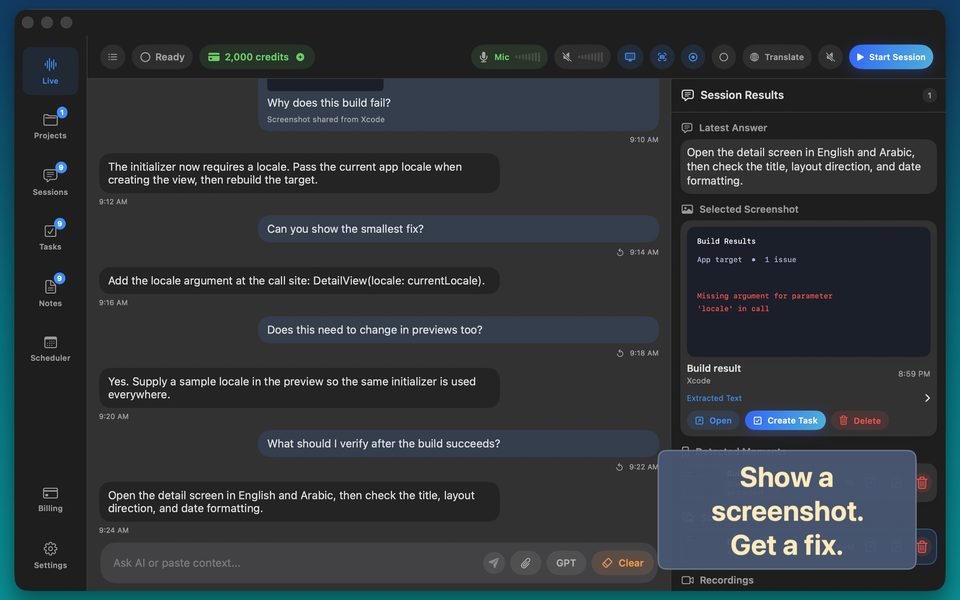
Open GPT Realtime Assistant on a Mac with Apple silicon (macOS 26 or later) and go to the Live tab. In the capture toolbar—immediately to the right of Screenshot and Record—you will see a button labeled Hide app with an empty circle icon.
By default, Hide app is off (status: Visible to screen sharing). That default is intentional: when collaborating openly with teammates or pairing on a prompt, you want normal macOS window behavior in the Dock, Command-Tab switcher, and shared desktop. When you are presenting a full-screen demo on a single laptop display and want your own talk-track, checklist, or live transcript to stay private, click Hide app once.
- Off by default (gray circle): Normal macOS window; visible in full-screen shares, screenshots, Dock, and Command-Tab.
- On (orange checkmark): Status bar confirms 'Hidden from screen sharing'; saved in your local Mac settings so you do not have to re-toggle it on every launch.
- Mac only: Relies on macOS window-server APIs and ScreenCaptureKit; iPhone and iPad ReplayKit broadcast streams do not offer per-window exclusion.
What happens under the hood on macOS when Hide app is enabled
Clicking Hide app coordinates three native macOS window-server behaviors at the same time so your notes stay readable to you without appearing on the audience's display:
- Window-server sharing exclusion (NSWindow.sharingType = .none): Instructs the macOS WindowServer to omit GPT Realtime Assistant's host windows from standard ScreenCaptureKit and CGWindowList desktop streams used by Zoom, Google Meet, Microsoft Teams, Slack Huddles, Webex, and macOS Screenshot.
- Floating window level: Elevates the main workspace window above standard application windows so clicking into Keynote, Chrome, Xcode, or Figma during a live demo does not bury your transcript behind the presentation.
- Self-capture exclusion (excludeOwnApplicationFromCapture): Tells GPT Realtime Assistant's own Screenshot and Record tools to ignore its own window, preventing 'hall-of-mirrors' recursion when you capture the display beneath it.
How to verify Hide app in 15 seconds before joining a call
Never wait until clients are on the line to test your screen-share setup. You can verify macOS window exclusion locally in fifteen seconds:
- 1. Open GPT Realtime Assistant on your Mac and click Hide app in the Live toolbar until the icon turns into an orange checkmark ('Hidden from screen sharing').
- 2. Place the assistant window directly over a browser or slide deck.
- 3. Press Command-Shift-3 on your Mac to take a full-screen macOS screenshot—or open Zoom / Google Meet in a solo test room and share Entire Screen.
- 4. Inspect the saved screenshot or Zoom's green-bordered share preview: you should see the browser or slide deck cleanly underneath, with zero trace of the GPT Realtime Assistant window.
Boundaries, hardware limits, and workplace rules
Hide app operates strictly through Apple's documented macOS software capture flags. It does not—and cannot—hide pixels from an external webcam or phone camera pointed at your physical monitor, nor from an inline HDMI/DisplayPort hardware capture card.
Always follow the rules of the room you are in. Using private speaker notes during your own sales demo, webinar, or customer onboarding call is normal professional preparation; using hidden assistance in a proctored exam or an interview that prohibits external tools violates those rules. You are responsible for obtaining any required recording or transcription consent.
FAQ
Why don't I see the Hide app button on my iPhone or iPad?
Hide app is available on Mac only. macOS lets individual app windows opt out of WindowServer screen capture (NSWindow.sharingType = .none), whereas iOS and iPadOS capture the entire composited display.
Is Hide app turned on automatically when I install GPT Realtime Assistant on Mac?
No. It is off by default ('Visible to screen sharing'). Click Hide app in the Live toolbar on Mac to enable it; once enabled, the setting is remembered locally until you toggle it off.
Does Hide app work when sharing my entire screen in Zoom, Google Meet, or Microsoft Teams?
Yes—when conferencing apps capture your Mac display through standard macOS screen-capture APIs, macOS omits windows marked with sharingType = .none even during full-screen desktop sharing.