Share Your Full Mac Screen on Zoom, Meet & Teams While Keeping Speaker Notes Private
Sharing a single browser window on Zoom or Google Meet breaks the moment your demo opens a second window, a terminal, or an OAuth popup. Sharing your entire MacBook screen fixes the demo—but normally exposes your speaker notes, discovery checklist, and live transcript to everyone on the call. Here is the single-monitor Mac workflow that solves both.
Why single-window screen sharing fails real product demos
Founders, solutions engineers, and instructors routinely jump between a slide deck, a browser, a Figma prototype, and a code editor or spreadsheet during a 30-minute call. If you share only Chrome, nobody sees the desktop app you just switched to; if you stop and reshare three times, you lose momentum.
On a two-monitor desk setup, presenters put their notes on the laptop screen and share the external monitor. When you are traveling with a single 13-inch or 14-inch MacBook, you only have one screen.
The single-MacBook setup: Entire Screen + Hide app + Brief answers
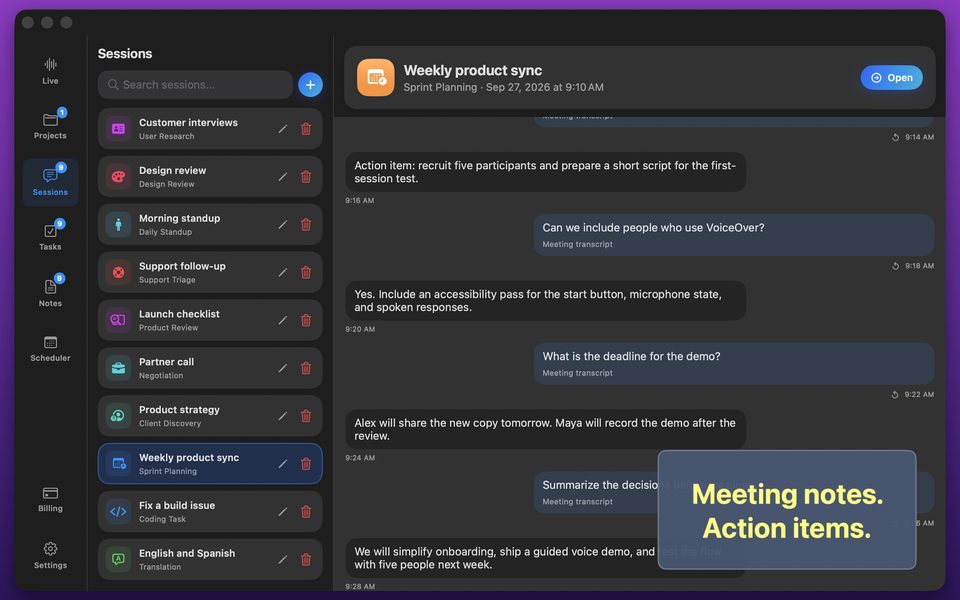
GPT Realtime Assistant on Mac lets you share your entire display smoothly while keeping a compact, floating briefing window visible only to your eyes:
- 1. Pick a template (Sales Demo, Client Discovery, Lecture Notes, or Blank) and paste 3–5 bullet points of context: pricing tiers, competitor objections, or agenda timing.
- 2. Set answer length to Brief and turn Spoken Replies off so answers stay silent and scannable in two seconds.
- 3. Click Hide app in the Mac Live toolbar (orange checkmark) so the assistant window floats above your demo apps while macOS excludes it from the shared display stream.
- 4. Enable Mac system audio (with participant consent where required) so questions from the other side of the Zoom, Meet, or Teams call appear in your live transcript alongside concise answers.
- 5. Share Entire Screen in your conferencing app and switch freely between slides, browser tabs, and native Mac apps.
Positioning the floating window so your eye line stays natural
Because Hide app keeps the window floating on top of your presentation, resize it to a narrow column near the top-center of your MacBook display—right below the built-in camera.
Reading a two-line answer or pricing figure just under the MacBook webcam keeps your gaze pointed toward the camera rather than darting down to a phone or sideways to a second monitor.
Turning insights into follow-up tasks before the next call
When a prospect asks for a custom security questionnaire or integration doc mid-demo, tap once in the session to convert that transcript moment into a Task with a due date. Your client never sees a jarring 'AI Notetaker Bot' in the participant roster, and your screen share never flickers away from the product.
FAQ
Will attendees see a black rectangle where the hidden GPT Realtime Assistant window sits?
No. On macOS, windows excluded via NSWindow.sharingType = .none are composited out cleanly by WindowServer—viewers see whatever desktop wallpaper, slide, or browser window is directly behind it.
Does a bot join my Zoom, Google Meet, or Microsoft Teams call?
Never. GPT Realtime Assistant runs locally as a native Mac app using macOS system audio and ScreenCaptureKit—no calendar bot dials into the meeting.
Can I run this completely offline on an Apple silicon Mac?
Yes. Download Whisper Large v3 Turbo and Qwen 3 8B in Settings on an M-series Mac to run transcription and text answers 100% on-device at zero credit cost.