Summarize a PDF while checking what was omitted
A useful PDF summary makes its coverage visible. It tells you which pages and passages were supplied, which claims they support, and what the assistant could not inspect.
Choose a real input route
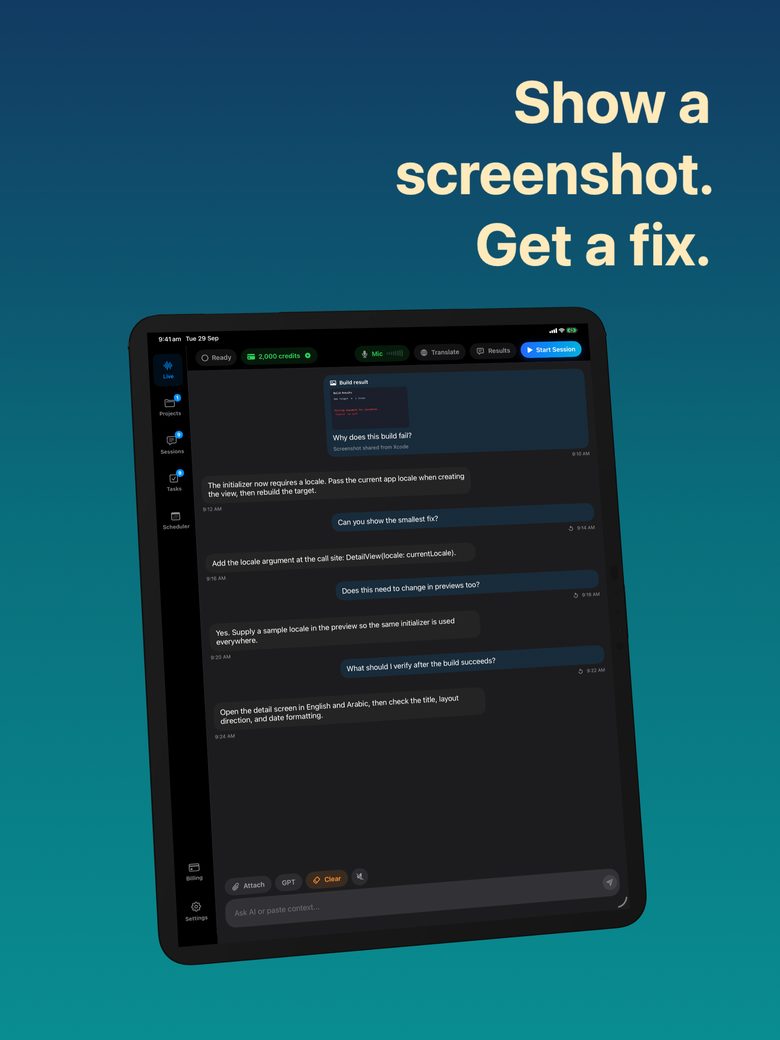
The released GPT Realtime Assistant supports image context; this guide does not claim native PDF upload or automatic whole-PDF summarization in that release. You can manually provide readable passages copied from a PDF, or clear page images when you are permitted to share them. Label each excerpt with its page number and document title.
Keep the complete original open in a separate reader. A page image may not include searchable text, and copied text can lose table headings or footnotes. If you cannot verify what was supplied, do not ask for a “complete document summary.” Scope the result to the material actually available.
Make an input inventory
Original inventory template: “Document: __. Purpose of summary: __. Pages supplied: __. Pages excluded: __. Tables/charts supplied with labels: __. Definitions and footnotes included: __. Decision this will support: __.” The decision field prevents an unfocused summary that covers a topic but misses the question you needed answered.
For a fictional community-event report, supply pages two and three describing attendance and costs. Explicitly mark that the appendix with survey methods is absent. A responsible summary can describe the supplied figures but cannot establish that the survey was representative from pages it never received.
Ask for claims with page references
Original prompt: “Summarize only the labeled passages and page images below for a volunteer planning next year’s event. For each main claim, give its supplied page reference. Separate findings, recommendations and caveats. List questions that need pages not supplied. Do not infer chart values or recreate missing appendices.”
Check whether every reference points to a page you actually supplied. Then locate the exact supporting sentence. A page number beside an unsupported claim is still unsupported. If the summary says costs fell, verify the time period, currency and whether the comparison covers the same categories.
Audit omissions before reusing it
Read the original headings and conclusion, then ask what disappeared: conditions, exceptions, negative results, alternative explanations or uncertainty. Compare quantities and denominators manually. If a chart is important, supply a clear image with axes and legend or a checked table, and require unreadable values to remain unknown.
Save the reviewed summary with its coverage note in your own workflow; do not imply that an AI answer becomes a verified report through export. For confidential material, redact before sharing and inspect the resulting file or image. If the summary will drive a consequential decision, have a responsible person read the relevant original passages rather than substituting the generated summary for the document.
FAQ
Can I use this as a native PDF feature in GPT Realtime Assistant?
The released image-context capability does not establish native PDF support. Use manually copied passages or readable page images and label the coverage honestly.
What makes a summary incomplete?
Missing pages, unreadable charts, omitted footnotes and unsupported conclusions can all matter. Keep a coverage inventory and compare the output with the original.