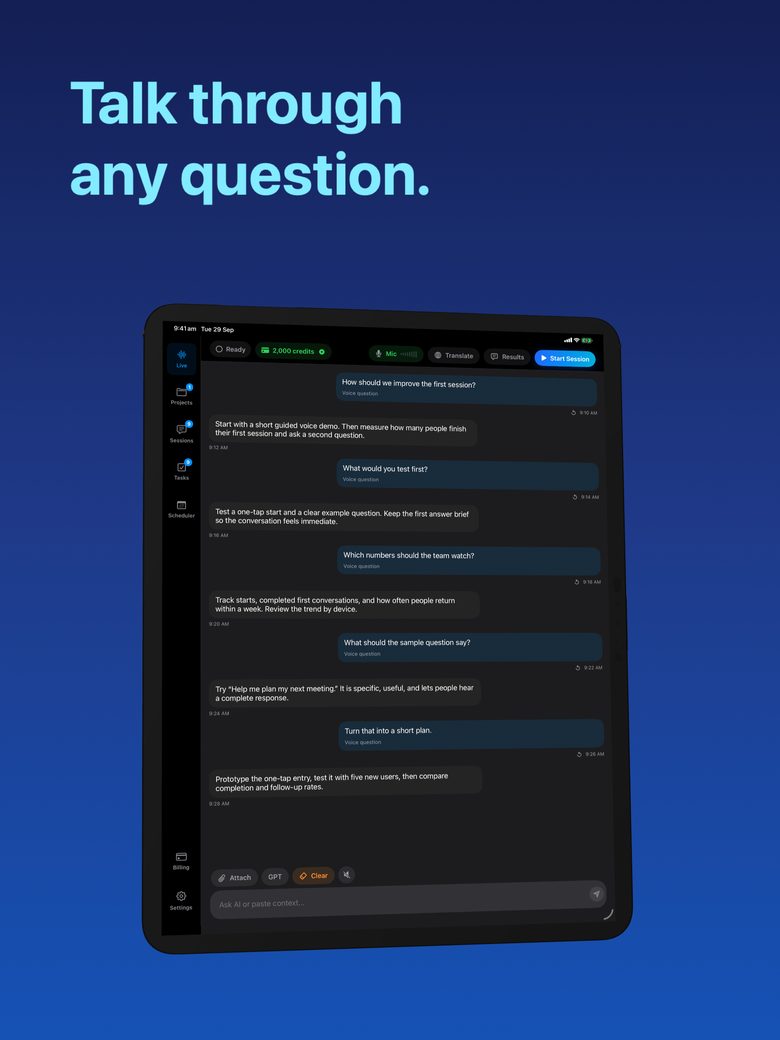
Plan a voice-first workflow with text fallbacks
A voice-first workflow should give you choices rather than trap you in one way of communicating. You may want to speak a question, read the reply, type a correction or hear selected text. Test the transitions you need on the actual device instead of assuming a voice feature covers every accessibility requirement.
Describe the barriers, not just the preferred input
List what makes the current interaction difficult: sustained typing, long spoken replies, small text, noisy surroundings or repeated interruptions. Different barriers need different adjustments. Someone who prefers speech input may still need a readable transcript or a quiet text response.
Choose a simple task for testing, such as creating a three-item packing list. The result should be easy to check, so you can concentrate on whether starting, correcting and ending the interaction are manageable. This is a personal workflow test, not a claim of accessibility certification.
Shorten the conversation deliberately
Try: “Use short replies. Ask one question at a time. Wait for my answer. Put the final checklist in text.” Adjust the instruction to your needs rather than adopting a fixed pace. If the assistant interrupts thinking pauses, a typed question or a shorter spoken turn may be easier.
In GPT Realtime Assistant, inspect the available answer and speech controls in your installed release. Spoken output, translation speech and readback practice are distinct functions. Do not assume that changing one of them configures every sound or input path in the app.
Keep a text route available
After a spoken request, check whether you can inspect the recognized text and correct an important detail. Test a typed correction such as “Replace the second item with a charger.” The expected result is the revised list without forcing you to restart the whole conversation.
If speech input is unreliable for a name or a number, entering just that fragment as text can preserve a mostly voice-based workflow. If reading a result is the difficult part, explore the system’s available reading controls, while verifying that the relevant app content is exposed in a usable form.
Distinguish system tools from app features
Apple documents Read & Speak features for hearing onscreen text and Live Speech for speaking typed text in supported situations. These are system capabilities with their own settings and availability. They are not proof that GPT Realtime Assistant integrates every option or voice directly.
Test the specific sequence you need: open the task, provide input, hear or read the answer, make a correction and exit. Check button labels and focus behavior with any assistive technology you use. If a step is inaccessible, record that exact obstacle for support instead of assuming you used the feature incorrectly.
Plan for fatigue, privacy and interruptions
Prepare a short text instruction you can reuse, and keep sessions focused enough to pause without losing the task. Headphones may help in shared spaces, but test microphone routing before relying on them. End capture when you finish rather than leaving a session open merely for convenience.
If a live exchange becomes difficult, preserve a concise verified recap and continue later. Do not use a general AI answer as a substitute for an established communication aid in a critical situation. A useful setup combines the app, system controls and fallback methods that actually work for you.
FAQ
Does this mean the app is certified accessible?
No. This guide suggests personal checks. Specific assistive technologies and individual requirements must be tested on the actual app version.
Are Apple Live Speech and AI spoken replies the same thing?
No. Live Speech speaks typed material through system accessibility features; an AI assistant generates a response through its own workflow.