How to Transcribe Google Meet on Mac Without a Bot Joining (2026)
Browser extensions break whenever Google Meet updates its DOM, and cloud notetakers embarrassingly announce 'Fireflies/Otter Notetaker wants to join this call.' On macOS, native system-audio capture solves both problems cleanly.
How bot-free Google Meet capture works on macOS
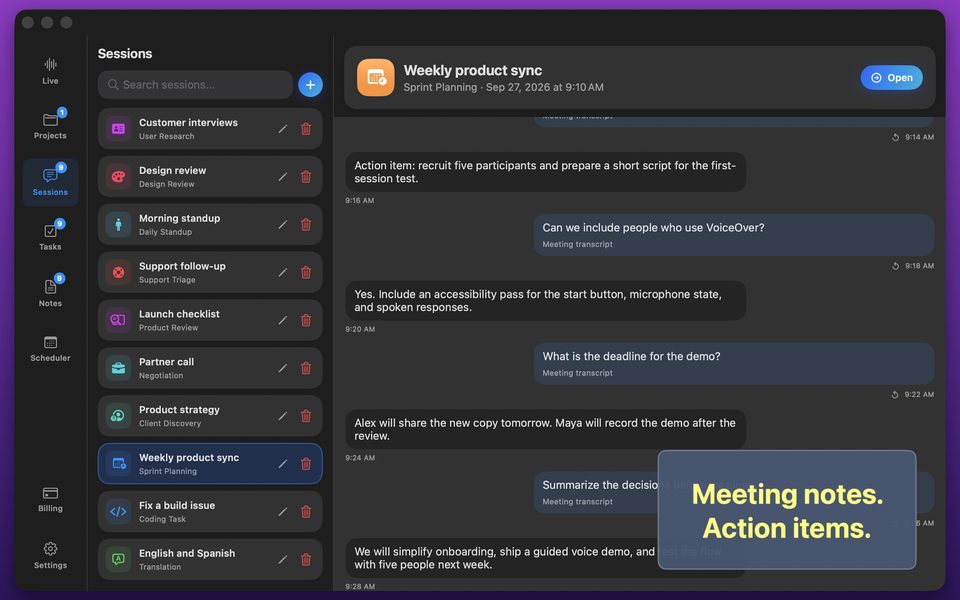
Instead of dialing a third-party bot into Google's servers or injecting scripts into Chrome, Safari, or Arc, GPT Realtime Assistant on Mac captures the audio coming through macOS alongside your microphone.
That means it works identically across Chrome, Safari, Arc, Brave, and Firefox—and even captures shared slides if you attach the browser window.
- Open GPT Realtime Assistant on your Mac before joining the Google Meet link.
- Pick a Meeting template (Discovery, Standup, 1-on-1, or Decision Log) and enable Mac system audio capture.
- Disclose transcription to attendees as required by your team policy or local law, then click Start.
- Read the live scrolling transcript and ask silent side-pane questions during the call, then click End to save action items locally.
FAQ
Does Google Meet show a third-party bot tile to other participants?
No—because no external bot joins the meeting URL. Always follow applicable consent rules and inform participants verbally.
Can I transcribe Google Meet 100% offline on Apple Silicon?
Yes—select local Whisper Large v3 Turbo on Mac so zero call audio leaves your laptop.