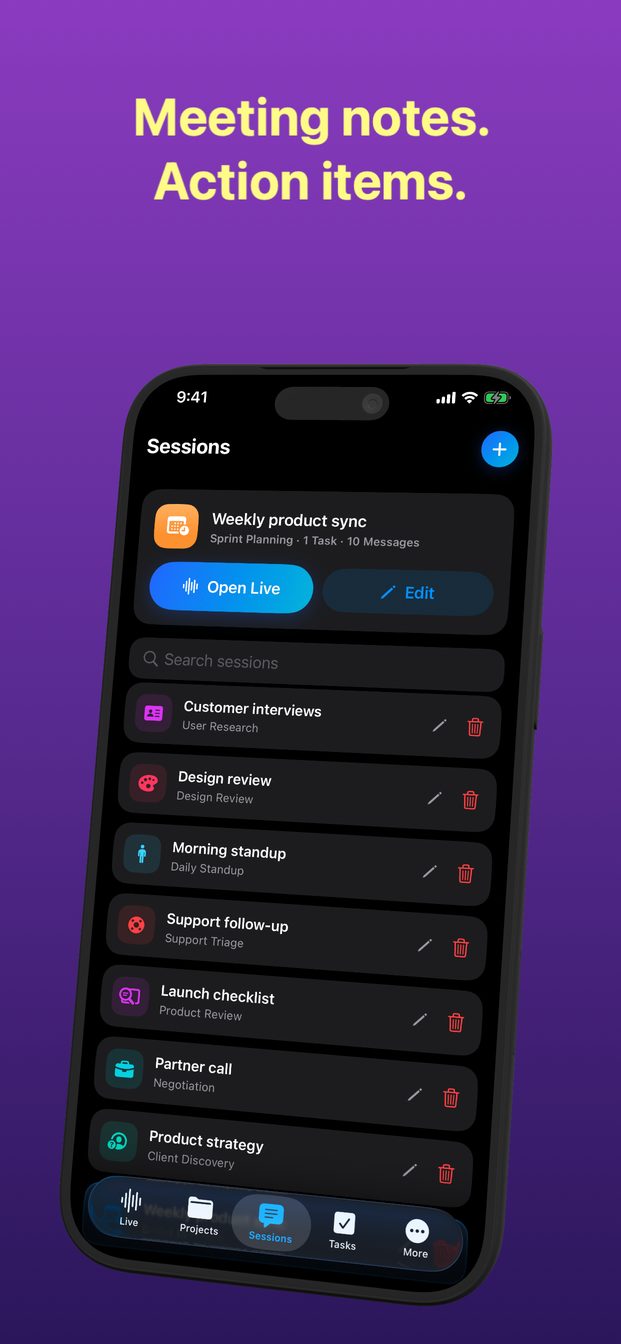
AI meeting assistant without a bot joining the call
GPT Realtime Assistant never joins the call: it listens through the microphone of the iPhone, iPad or Mac in front of you, and on a Mac it can also hear the call's own audio, so no extra participant appears. It works just as well in a room with no call at all, and it helps during the meeting — a live transcript, and answers when you ask — rather than sending minutes afterwards.
Why a bot in the call is the wrong shape for many meetings
Many meeting assistants work by joining a video call as a participant of their own. That has consequences. Someone has to invite it, the organiser's settings or the company's IT rules can keep it out, and everyone in the call sees an extra name in the list.
A bot also needs a call to join. Many of the meetings where notes matter most happen in a room: a site visit, a meeting in a client's office, a family sitting down with a solicitor, a planning session around a table. There is no call there for anything to join.
The other approach is to listen the way a person taking notes does: from a device in the room, or on the computer the call is running on.
How this one listens instead
On iPhone, iPad and Mac, a session listens through the device's microphone. Put the device in the middle of the table and it hears the room. Nothing connects to a meeting service, and nothing needs an invitation.
On a Mac there is a second source. System turns on system audio — the sound the Mac itself plays, which in a video call is the other participants. The first time, macOS asks for Screen & System Audio Recording permission; without it the app cannot hear the call. Because the app listens to the sound rather than connecting to the meeting service, it does not matter which app the call runs in.
On iPhone and iPad there is no system audio. The session hears what the microphone hears, so for a call on headphones, use the Mac.
An in-person meeting, step by step
A minute before the meeting starts, not during it.
- Pick the project the meeting belongs to, and start a session from the template that fits: Decision Meeting, Sprint Planning, Daily Standup, Client Discovery and others. The template gives the assistant a role and instructions for that kind of conversation.
- Set the Detail Level to Brief. In a meeting you glance at the screen; you do not read essays.
- Tell everyone, in one sentence, that an AI assistant will transcribe the meeting, and wait for the answer.
- Put the device flat in the middle of the table — not in front of the person who talks least, and not behind a laptop screen.
- Tap Start before the discussion begins. Nothing said before the session starts is transcribed.
- Keep the screen on until the end: a live session ends when the app goes to the background or the screen locks. Plug in for a long meeting.
- Tap End when the meeting ends.
A video call on a Mac
The same idea, with the call's audio added.
- Start a session on the Mac from the template that fits the call.
- Turn on System so the other participants are heard, and grant Screen & System Audio Recording when macOS asks.
- Tell the people on the call that an AI assistant is transcribing it, before you begin.
- If someone shares slides, choose their window with Display and click Screenshot when the slide you want to ask about is up. The capture goes to the assistant at once.
- Keep the app's window open beside the call, click Start Session as the call begins, and End Session when you hang up.
Nothing joins the call, so you have to say it
There is a flip side to an assistant nobody sees arrive. A bot in the participant list announces itself, and a meeting platform's own recording usually tells everyone. A session on your device does neither. Nobody in the room or on the call knows an AI is listening unless you tell them.
So tell them, at the start, before you tap Start: “I'm using an AI assistant to transcribe this so I can listen properly — is everyone all right with that?” If someone says no, do not start the session. In some places the law requires everyone's consent, and many workplaces have a policy of their own. The guide on recording and transcribing other people covers what to say and what the rules look like.
The same applies, more so, to Record on a Mac, which makes a video of the chosen screen or window with its sound.
In a cloud session the audio goes from the device straight to OpenAI's Realtime API. The session is stored on your device, with no cloud sync, and Arte Soft's servers never receive the audio, transcripts or answers. For a meeting whose audio should not leave the room at all, an Apple silicon Mac can run a local session on models downloaded once in Settings.
It helps during the meeting, not afterwards
This is not a service that emails minutes when the meeting is over. It does not write summaries or minutes by itself, and it does not transcribe a recording afterwards. It works while the session runs, and its value is in the questions you can ask before people leave the room.
Ask by typing in the box that says “Ask AI or paste context…”, so the question does not interrupt anyone, or out loud when it is your turn to speak. Near the end, read the answer about decisions out to the room: if it is wrong, someone corrects it on the spot, which is the cheapest moment for a correction.
Questions that work well in the last ten minutes:
- “What did we decide about the date?”
- “Who said they would send the contract, and by when?”
- “What is still open?”
- “What was the figure mentioned for the second site?”
After the meeting, and what it is not
Anything that needs doing becomes a task when you make it one: Create Task from Results, with a status, a priority, dates and comments. The AI does not create tasks by itself. There is no export or share button; to put a decision into an email, select the text in the answer and copy it. Later, Search sessions finds the meeting by title, topic or last message, and on a Mac, Notes holds every question and answer in one searchable list.
Be clear about what the transcript is. One device in a large room can miss the quiet voice at the far end, and two people talking at once come out mixed. It is a working record for you, not certified minutes or evidence. Where a meeting needs an official record, someone still has to write and approve one.
Does it join Zoom, Google Meet or Microsoft Teams calls?
No. Nothing joins the call. On a Mac, System lets it hear the call's audio; on iPhone and iPad it hears what the microphone picks up in the room.
Will the other people know it is listening?
Not unless you tell them, because nothing appears in the call. Say it at the start and ask whether everyone is comfortable with it.
Does it send a summary or minutes after the meeting?
No. It works live: ask it during the meeting what was decided or what is still open, and create tasks yourself from the answers.
Does it work for a meeting with no call at all?
Yes. Put the iPhone, iPad or Mac in the middle of the table, keep the screen on, and it transcribes the room.