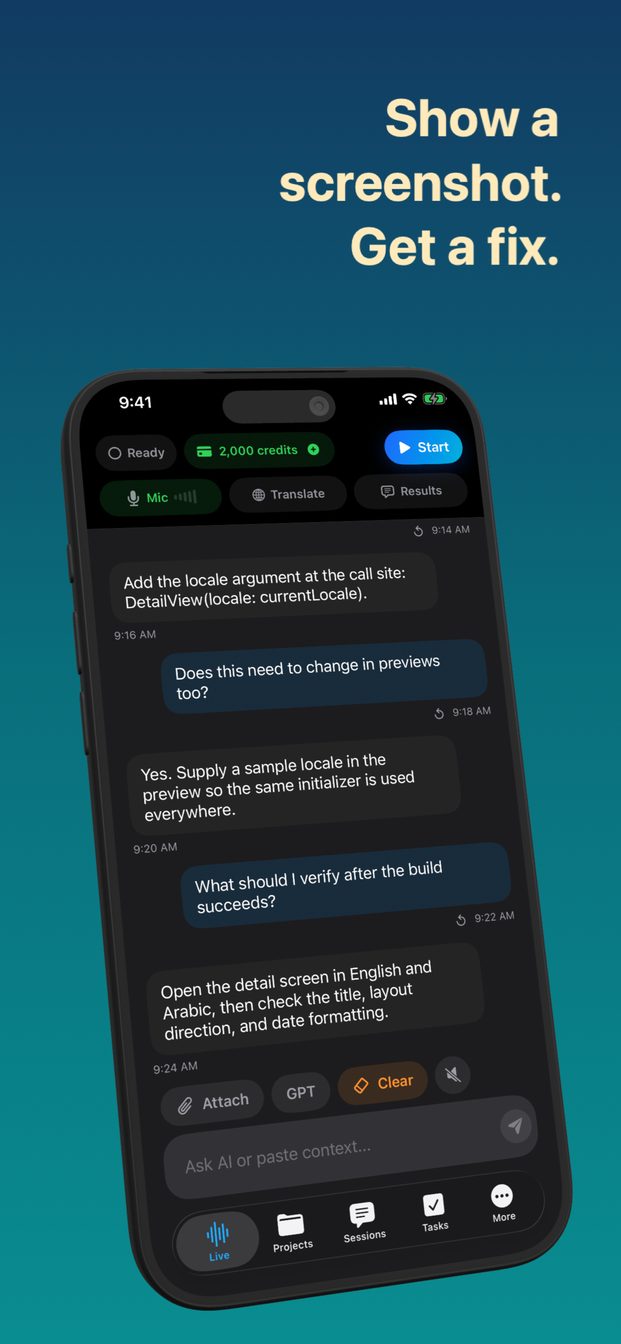
Ask AI about a screenshot or photo, by voice or typing
Attach the screenshot or photo to a session and ask your question, out loud or in the text box: the assistant answers with the image in view, including the text in it. On iPhone and iPad the image comes from Files, Photos or the Camera; on a Mac, Screenshot captures the screen or window you choose and sends it at once.
What the assistant can look at
Images: a screenshot, a photo from your library, or a picture taken with the camera for the purpose. The assistant looks at the whole picture and reads the text in it, so a screenshot of an error message is as good as the error pasted in, and often better, because it also shows where the error appeared.
Only images. It does not open PDFs, documents or audio files. When the thing you want to ask about is a page in a long document, take a screenshot of that page and attach the screenshot. It is usually the better question anyway, because it points at the part that matters.
You can ask about the image by speaking or by typing, and the answer appears as text in the session either way.
Asking about an image, step by step
The same few taps whether the question is spoken or typed.
- Open the app and start a session. Pick a template if one fits — Coding Task for a question about code, for example — or write your own instructions.
- To ask out loud, tap Start (Start Session on iPad and Mac) so the assistant is listening. To type, use the box that says “Ask AI or paste context…”.
- On iPhone or iPad, tap Attach and choose Files, Photos or Camera, then pick the image or take the picture.
- On a Mac, choose the screen or window with Display, then click Screenshot. The capture is sent to the assistant straight away.
- Ask your question about it: “What does this error mean?”, “What is box 7 on this form asking for?”, “What does this chart say about March?”
- If the answer is not what you needed, ask a follow-up, or attach a clearer image.
Show a screenshot, get a fix
The screenshot most people take in frustration is an error: a build that failed, a dialog with a code in it, a settings page that refuses to save. Attach it and ask what went wrong and what to change. The Coding Task template is written for this kind of session; start from it when the question is about code.
On a Mac this is quickest of all. Pick the window with the build log or the terminal in Display, click Screenshot, and ask “why does this fail?” while you are still looking at it. If the answer needs more than the screen shows, paste the relevant function or configuration into the text box. The assistant sees only what is in the image and what you tell it, not your whole project.
Treat the fix as a suggestion from a colleague who has seen one screen of your problem. Read it before you paste it in, and run the build again rather than assuming it worked.
Before you capture, look at what else is on the screen. A terminal can show an API key, a browser tab can show a customer's name, a notification can show someone's message. Close or crop them first; everything in the picture goes with the question.
Forms, letters and menus in another language
A photo of a form you cannot read is a good question to ask out loud: what is each field asking for, which boxes apply to me, what does the small print at the bottom say. The same works for a letter from an office, a notice on a door, a menu, or the instructions on a packet.
Ask in your own language, and ask the question you actually have: “translate this menu and tell me which dishes have no meat” gets further than “what does this say”.
Where it matters, check. The assistant explains a form; it does not fill it in for you, and its explanation is not a certified translation. For an official form — tax, immigration, a medical consent — use the answer to understand what is being asked, then confirm with the office that issued it, or with a professional, before you sign.
Translating a live conversation sentence by sentence is a different job, done by Translate. It is an app-wide switch that stays on until you turn it off, and while it is on, everything you say or type is translated into the To language — so if you used it earlier, check it before asking about an image.
Charts, slides and whiteboards
A chart is a picture of numbers, and a question about it is usually one of three: what does it show, what changed, and does it say what the person presenting it says it says. Screenshot the chart — on a Mac, the window where it is open — and ask. Where a figure matters, read it off the source, not off the answer.
A whiteboard at the end of a meeting is the same problem in marker pen. Photograph it before someone wipes it, then ask what the decisions on it were, or ask for the diagram as a list. Handwriting is harder to read than print; where a word matters, check it against the board.
For slides shown in a video call on a Mac, pick the call's window in Display and click Screenshot when the slide you want is up. When the slide changes and you have a new question, take another.
Getting an image the assistant can read
Small things make a large difference to the answer.
- Crop to what you are asking about. A whole screen with the error in one corner invites an answer about the wrong part.
- Photograph straight on, in good light, with the text in focus. A blurred photo of a form is a guess for anyone.
- Say what you want to know. “What is this?” gets a description; “which field is my date of birth?” gets an answer.
- Give it the context the picture does not show: the app it came from, what you were trying to do, what you have already tried.
- On iPhone and iPad, take screenshots of other apps before you start the session. A live session ends when the app goes to the background, so switching away mid-session to capture something closes it.
Where the image goes, and what it is not for
In a cloud session the image goes to OpenAI with your question, and the session is stored on your device, with no cloud sync. Arte Soft's servers never receive your audio, transcripts or answers.
That makes what you photograph your responsibility. Your own error message, your own letter, a menu on a table: fine. Someone else's private documents, a colleague's screen, a stranger's ID card: not yours to send anywhere, however useful the answer would be.
And some pictures need a person. A rash, a scan, a contract clause, a warning light on a car dashboard: the assistant can describe what it sees and suggest what to ask, but it is not a doctor, a lawyer or a mechanic, and it can be confidently wrong. Use its answer to ask the right professional a better question, not to replace them.
Can it read a PDF or a Word document?
No. It works with images: screenshots and photos. Take a screenshot of the page you want to ask about and attach that.
Do I have to ask out loud?
No. Type the question in the box that says “Ask AI or paste context…”, or speak it in a live session. The answer appears as text either way.
How do I show it my screen on a Mac?
Choose the screen or window with Display, then click Screenshot. The capture is sent to the assistant at once; take another when the screen changes.
Where does the image go?
In a cloud session it goes to OpenAI with your question. The session is stored on your device, and Arte Soft's servers never receive your audio, transcripts or answers.