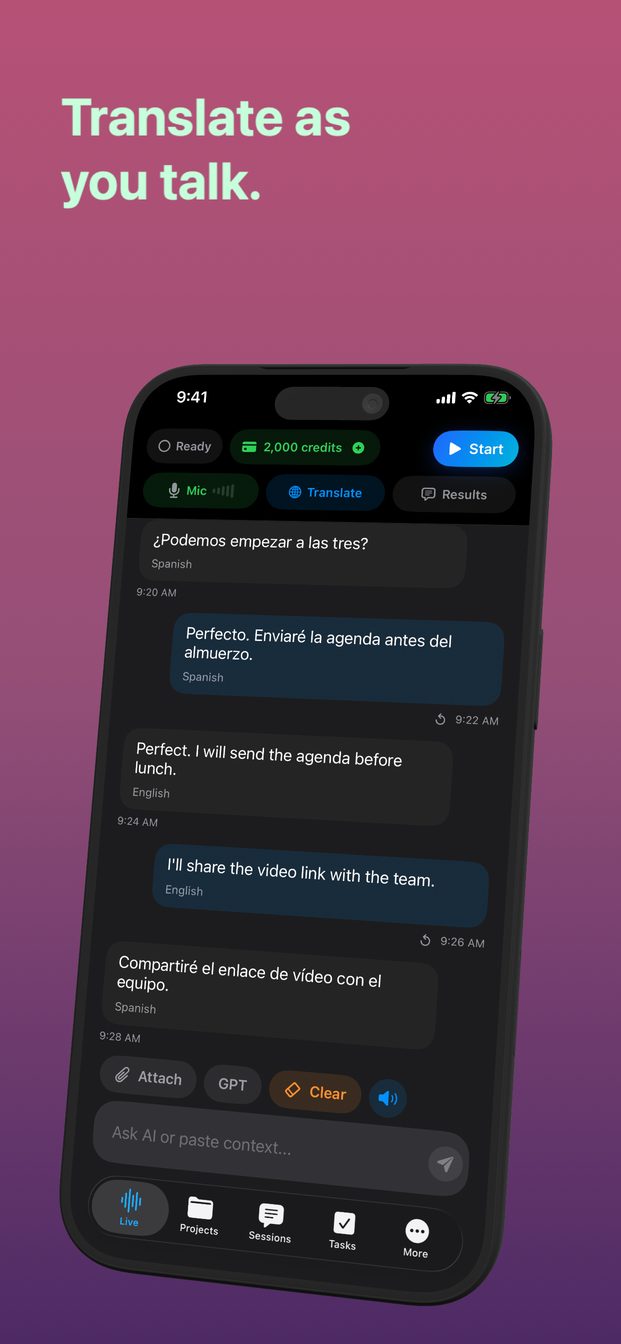
Turn a live translation into a video, with your face and your voice
A live translation is gone from the screen once the conversation moves on. Recorded, it becomes something you can send: a message to family with your words in their language, a lesson that shows both languages at once, a record of how a conversation went. GPT Realtime Assistant does the translating and Reel Screen Recorder records it, with your camera and your voice, as one video.
What the video shows
Each sentence you say, written out, with its translation beside it a moment after you finish. Your face in a corner, from Reel's camera. Your voice, from the microphone that both apps are listening to. Nothing needs adding afterwards: the words on screen appeared while you spoke them, so they are already in time.
With translation switched on, the assistant only translates. The session's template and instructions do not apply, so there is no commentary between your sentences to cut out of the video.
Set up the translation for a video
Do this before anything is recording.
- Tap Translate and switch on "Translate chat and live session". Set To to the language the person watching reads.
- Set From to the language you will speak, or leave it on Auto Detect.
- Open Settings › Appearance › Chat Font Size and choose Large or Extra Large. The video will often be watched on a phone, where normal-sized text is hard to read.
- Say a sentence or two as a test, check that the translation goes the right way, and tap End. That test session is not part of the video.
One direction per take
Translation works one way at a time: from the From language into the To language. For a message to one person that is exactly right — you speak, they read.
For a conversation, the other person replies after you open Translate and exchange From and To. On video that moment is in the recording too, which suits a lesson and interrupts a message. If the video is for someone who will only watch, keep it to one direction.
The order: recording first, session second
A live session ends as soon as GPT Realtime Assistant stops being the app in front — switching apps, Control Centre, the screen locking — with "App inactive. Realtime session closed." A screen recorder has to be started somewhere else, so it has to be running before the session starts, and stopped after the session ends.
- In Reel, choose Picture in Picture for the camera, so it follows you into other apps (on a Mac the camera is a pop-out window instead).
- Start the recording in Reel.
- Open GPT Realtime Assistant and put the camera where the translation does not appear.
- Tap Start (Start Session on iPad and Mac) and speak, pausing at the end of each sentence.
- Tap End (End Session), then stop the recording. On a Mac, stop it with a keyboard shortcut set in Reel, so you never have to click back into Reel while the session is live.
If the session closes halfway
Something took GPT Realtime Assistant off the front: a swipe to another app, a notification pulled down, the screen locking, a click on another window on a Mac. The recording is still going. Come back to the app and the session button reads Resume (Resume Session on iPad and Mac); tap it and carry on. The gap is in the video; what came before it is kept.
On an iPhone, set Auto-Lock to a longer time before a long take, and turn on Do Not Disturb so nothing arrives while you are talking.
Before you send it
Watch it once. Live translation is for keeping a conversation moving, not a certified translation: names, numbers and anything said quickly are where it slips. If one sentence came out wrong, record the message again; it takes a minute.
If anyone else speaks in the video, ask them first — a recording that is also translated is still a recording. During a cloud session the audio goes to OpenAI to be transcribed and translated; the session itself stays on your device, and the video is saved wherever Reel saves it, not by GPT Realtime Assistant.
Can GPT Realtime Assistant record a video itself?
Not the video this guide is about. On a Mac it can record a chosen screen or window with its sound and keep it with the session, but without your camera; on iPhone and iPad it records no video. For the screen, your camera and your voice in one video, use a screen recorder such as Reel Screen Recorder.
Why did the translation stop when I started recording?
The session ends whenever GPT Realtime Assistant is no longer the app in front, and starting a recorder means going to it. Start the recording first, then the session, and end the session before you stop the recording.
Is the translation spoken in the video?
No. It appears as text on screen, which is what the recording shows, with your own voice speaking the original.
Does it work on iPhone, iPad and Mac?
Yes. Both apps run on all three; the steps are the same, and on a Mac you stop the recording with a keyboard shortcut instead of switching to Reel.