Choosing a real-time translation app: what to test first
Before you rely on a real-time translation app, test it in a real conversation on eight points: how it listens, how you reply, how fast a sentence appears, whether both languages stay on screen, text size, offline use, where the audio goes and what it costs. Here is what to look for on each, and where GPT Realtime Assistant stands, including the points where it may not suit you.
Test it in a conversation, not a demo
An app that translates one typed sentence well can still fall apart in a real exchange: two people, background noise, someone who pauses in the middle of a thought. The only test that tells you much is a short conversation that looks like the one you need it for.
One thing to know first: GPT Realtime Assistant has no free trial. It is free to download, but a subscription is needed before the first session, so the points below are also the questions to answer before you pay. A ten-minute test, with this app or any other, goes like this:
- Find someone who speaks the other language — a friend, a colleague, a neighbour — and agree on an ordinary topic: directions, a booking, a problem with an order.
- Sit where you will really use it: a kitchen table, a café, a street with traffic going past. A quiet office flatters every app.
- Let them speak first, at their normal speed and in their normal sentences, and read the translation without asking them to slow down.
- Reply in your own language, and note exactly what you had to do to be translated back: which buttons, and how long it took.
- Include one name, one address and one number, and check each against what the speaker meant.
- Afterwards, ask the other person what they understood of your replies. Their answer is the result of the test.
Continuous listening or press-to-talk
Some apps translate only while you hold a button; others listen for the whole conversation. Press-to-talk gives you control over what is translated, and costs you a hand and a tap for every sentence. Continuous listening leaves both hands free, and translates whatever it hears, including a remark you did not mean it to catch.
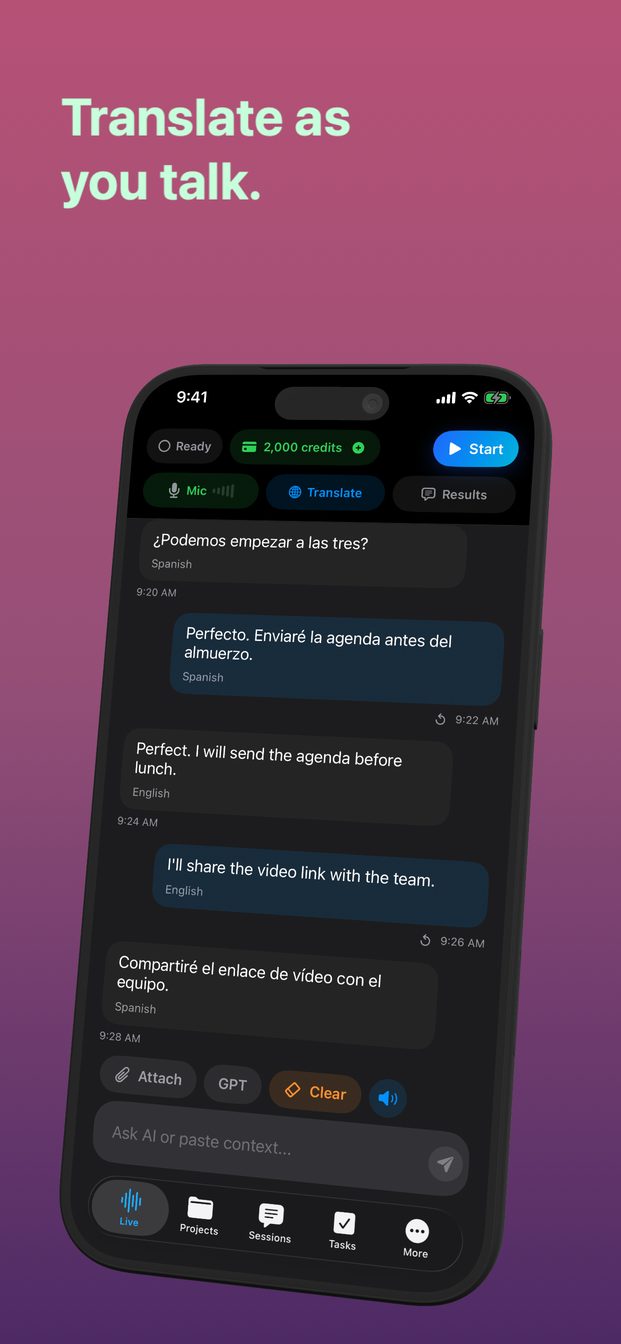
Where this app stands: continuous. You tap Start once (Start Session on iPad and Mac), the app listens until you tap End, and each sentence appears translated moments after the speaker pauses. It suits a conversation that flows; it is less suited to a crowded counter where other people's voices will be translated too.
Check what happens when the phone is put down, too. In this app a live session ends when the app goes to the background or the screen locks, so for a long conversation keep the app open, set Auto-Lock to a longer time and keep the phone plugged in.
One-way or two-way, and how you reply
This is the point that decides the most. A conversation goes both ways; an app may translate both directions by itself, or only one direction at a time, with a step each time the direction changes. Find out exactly what that step is: you will take it every time it is your turn.
Where this app stands: one direction at a time. You set it with the Translate button, which opens a sheet titled Translation, with the switch "Translate chat and live session" and two rows, From and To. Everything said or typed is translated from the From language into the To language. There is no swap button and no automatic two-way mode. To reply, open Translate and exchange From and To, which takes a few seconds, or leave From on Auto Detect and set To to the language you want next.
In practice that works well when one side does most of the talking — a doctor explaining, a guide describing, a relative telling a story — and it is slower for a quick back-and-forth with many short turns, such as haggling or planning a trip together. You can also type a reply into the text box "Ask AI or paste context…": with translation on, typed text is translated in the same direction as speech.
Speed, both texts on screen, and the size of the text
Speed: note how long you wait between the end of a sentence and its translation, and whether a pause in the middle of a sentence cuts it in two. A short wait is fine; a wait that makes people repeat themselves is not.
Both texts: a translation on its own leaves nothing to check against. It helps when the original stays next to it, so you can see what was heard, and you can scroll back to something said a minute ago.
Text size: if the screen is shared with an older relative, or read at arm's length across a table, small text is a real problem.
Where this app stands: each utterance and its translation appear as a pair of bubbles, one pair per utterance, and the whole exchange stays in the session. Settings › Appearance › Chat Font Size offers Small, Default, Large and Extra Large, on top of the iPhone's own text size. Languages are not a short list of popular ones: the picker offers hundreds, with a search field.
Whether it works without a connection
If you travel without mobile data, or work somewhere with no signal, settle this yes-or-no question before anything else.
Where this app stands: on iPhone and iPad, translation runs in the cloud and needs an internet connection. The only offline path is a local session on a Mac with Apple silicon, which transcribes and translates as text with models downloaded once in Settings. That is useful on a laptop on a train; it does not help with a phone at a market stall.
Where the audio goes, and what it costs
Ask any app two questions: which company processes the audio, and where the conversation is stored afterwards. The answers matter most for medical, legal and family conversations.
Where this app stands: during a cloud session the audio goes from the device directly to OpenAI's Realtime API. The session is stored on the device, with no cloud sync. Arte Soft's servers issue a short-lived session secret and record usage and purchases; they never receive the audio, the transcript or the translation. There is no export button; text in a bubble can be selected and copied with the system menu.
Cost models differ more than they first appear: a one-off price, a free tier with limits, a subscription, or paying as you go. This app is a subscription: 9.99 USD a month, including 2,000 AI credits a month, which are spent on the audio and text a cloud session uses. Credit packs of 1,000 (4.99 USD) and 5,000 (19.99 USD) add more. There is no free trial and there are no free credits, and purchases go through Apple.
What no translation app replaces
Whichever app you choose, live machine translation is for keeping a conversation moving. It can mishear a name, translate an idiom word for word, or drop a digit from a number said quickly. For a medical consent, a legal statement, an immigration interview or anything you will sign, a qualified interpreter is the right answer, and many hospitals, courts and public offices can arrange one.
Whatever you use, tell the other person an AI is translating before you start. Most people are glad to see the screen; they should still be asked.
Does GPT Realtime Assistant translate both sides of a conversation automatically?
No. It translates one direction at a time, from the From language into the To language. To reply, open Translate and exchange From and To, or leave From on Auto Detect and change To.
Does it translate offline on iPhone?
No. On iPhone and iPad translation needs an internet connection. Offline translation, as text, is only available in a local session on a Mac with Apple silicon.
Is there a free trial?
No. The app is free to download, but a subscription of 9.99 USD a month, including 2,000 credits, is needed before the first session.
How many languages does it support?
The language picker offers hundreds of languages, with a search field.