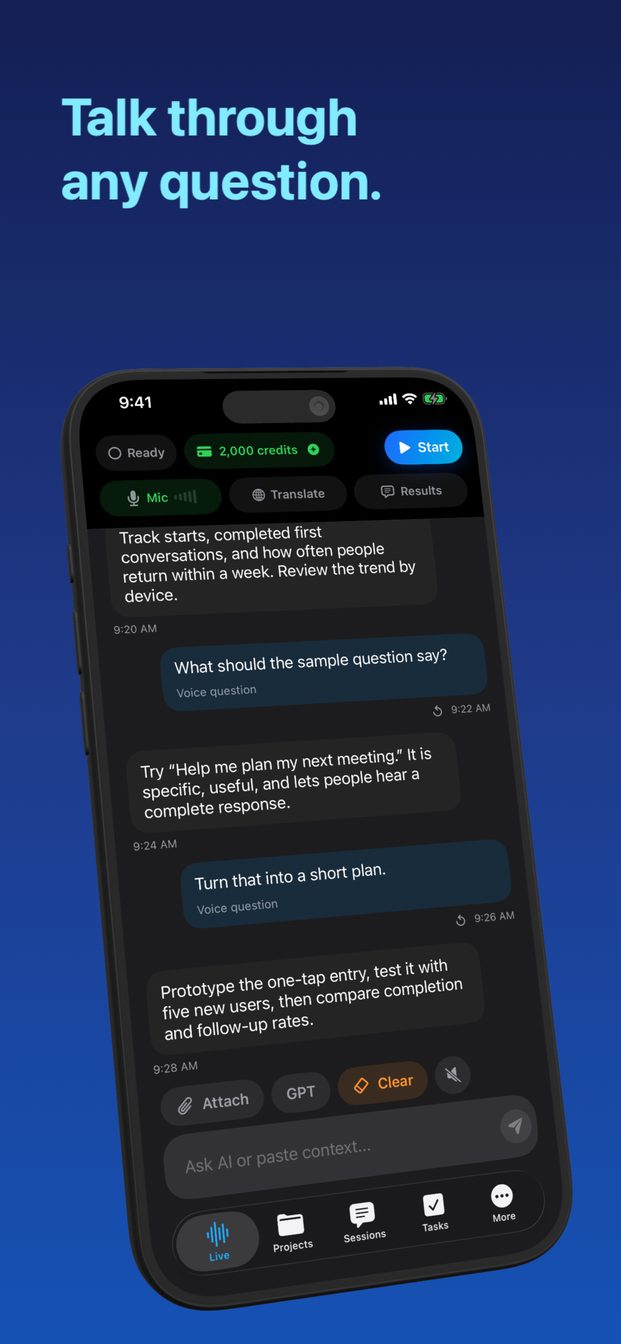
Live captions for a face-to-face conversation on iPhone
To caption a conversation with someone in front of you, start a session in GPT Realtime Assistant and read the live transcript as they talk, in text as large as you need. It helps when hearing is difficult, the room is loud or an accent is hard to follow. It is not a certified captioning service and makes no promise of accuracy, so for a formal accommodation, ask for professional captioning.
What you see on screen
A session writes a live transcript. Each time the other person finishes a thought, what they said appears on screen as a bubble, and the conversation builds up as a list you can scroll back through. If you missed a line while you were answering, it is still there to reread.
The assistant also answers each turn by itself; that is what the app is built for. For captions you want it out of the way, so start a blank session with an instruction such as "Do not comment on the conversation. Keep any reply to a few words unless I type a question." and set Detail Level to Brief. Instructions steer the model rather than switch it off, so expect a short reply now and then between the lines you are reading.
If the other person speaks a different language, a translation session shows each sentence and its translation as a pair of bubbles instead; the guide on translating a conversation live covers that.
Setting it up
Do this once, before the conversation, not while someone is waiting for you to answer.
- Open Settings › Appearance › Chat Font Size and choose Large or Extra Large. It applies on top of the iPhone's own text size.
- Tap Translate and check that "Translate chat and live session" is off. Translation is an app-wide setting and stays on from the last time it was used.
- Start a blank session, write the instruction above, and set Detail Level to Brief.
- Set Auto-Lock to a longer time in the iPhone's Display & Brightness settings, and plug the phone in if the conversation will be long.
- Tell the other person what the phone is for, put it in place, and tap Start (Start Session on iPad).
- Tap End when the conversation is over. The transcript stays in the session, on the device.
Where to put the phone
The captions can only be as good as the sound that reaches the phone. Put it close to the person you want to caption, pointed towards them, with the screen tilted towards you so you can read without picking it up.
In a noisy room — a café, a family dinner, a waiting room with a television on — distance matters more than anything else. A phone half a metre from the speaker does far better than one across the table, and a phone lying flat among plates and glasses hears every clatter. A small stand helps. An iPad shows more text at the same font size, which is easier to follow for a long conversation.
One person at a time works best. When two people talk over each other the transcript mixes them, because it cannot separate what reached the microphone as one sound. In a group conversation that matters to you, it is fair to ask people to take turns and to face the phone.
Keep the app open and the screen on
This is the rule that catches people out. A live session ends when the app goes to the background or the screen locks, with the message "App inactive. Realtime session closed." A screen that locks halfway through a conversation means the captions stop until you start a new session.
- Set Auto-Lock to a longer time before you start, and put it back afterwards if you prefer.
- Keep the phone plugged in for anything longer than a short chat; a screen that stays on uses battery.
- Do not switch to another app to check a message. What has already been transcribed stays in the session, but nothing new is captioned once the session has closed.
- If it does close, start a new session straight away; the earlier part of the conversation is kept in the first one.
Apple Speech or OpenAI listening
There are two ways the app can hear. By default, OpenAI's model hears the audio and writes the transcript. Under Listening you can choose Apple Speech instead, which transcribes on the device and sends the text to GPT for the answer. Choose it before you tap Start.
Which works better for you depends on the voice, the language and the room, so try both in the conditions you will actually use rather than trusting a general rule. With Apple Speech the audio itself stays on the phone, while the text of what was said still goes to GPT. On iPhone and iPad, both need an internet connection.
What it is not
It is not a certified captioning service, and there is no accuracy guarantee. It can mishear names, numbers and quiet words, run two speakers together, and fall behind a fast talker. For a conversation over dinner that is a fair trade; for anything where a missed word has consequences, it is not enough on its own.
For a medical appointment, a legal meeting, or a classroom where you are entitled to an accommodation, ask the provider about CART (Communication Access Realtime Translation) or other professional captioning, or a sign language interpreter if that is what you use. Many hospitals, courts, universities and employers arrange these, and a phone on the table is not a substitute for them.
Tell the other person
Captions are a transcript, and a transcript is a record of what someone else said. Tell the person first, and show them the screen; it explains itself better than a description does.
During a cloud session the audio goes from the device directly to OpenAI's Realtime API. The session is stored on the device, with no cloud sync, and Arte Soft's servers never receive the audio, the transcript or the answers. The guide on recording and transcribing other people covers what to say, and when the law asks for more.
Can I make the captions bigger?
Yes. Settings › Appearance › Chat Font Size offers Small, Default, Large and Extra Large, on top of the iPhone's own text size.
Why did the captions stop in the middle of a conversation?
A live session ends when the app goes to the background or the screen locks. Keep the app open, set Auto-Lock to a longer time, and start a new session if it closed.
Can it caption a video call?
On a Mac, yes: the System toggle adds system audio, the other side of the call, and needs macOS's Screen & System Audio Recording permission. System audio is a Mac feature.
Is it accurate enough for a doctor's appointment?
It makes no accuracy promise and is not a certified service. For a medical, legal or classroom accommodation, ask the provider about CART or other professional captioning.