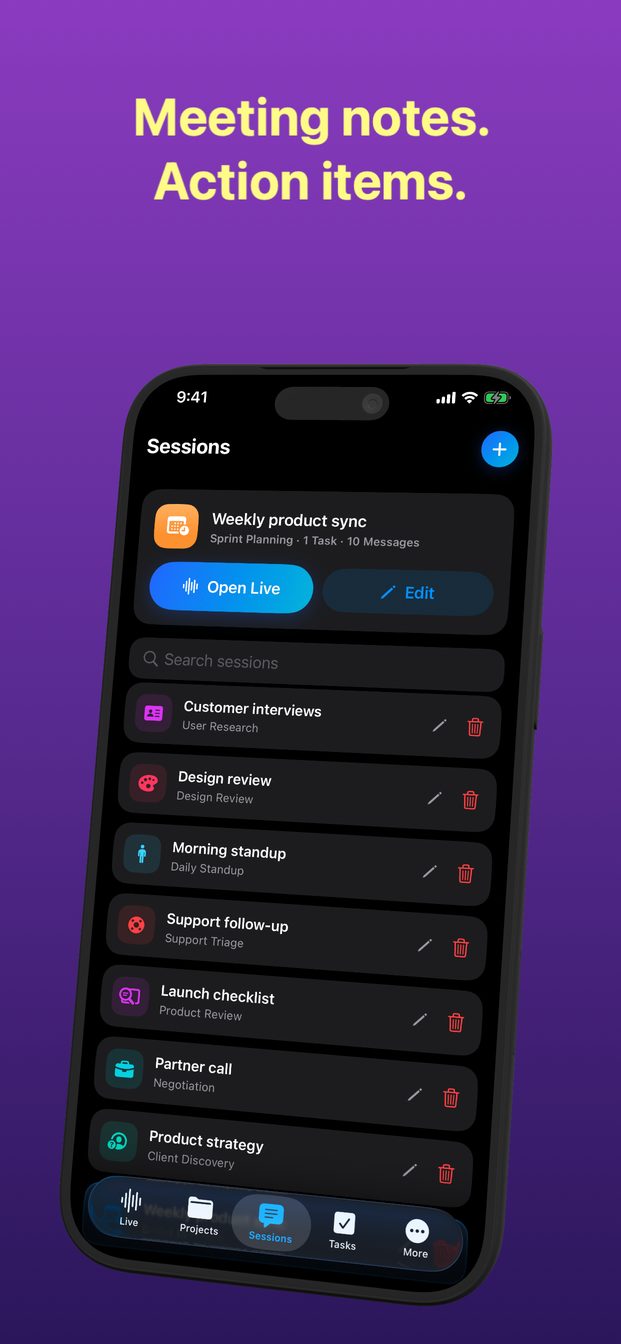
Real-time AI help during a sales or client call
Start a session from the Client Discovery, Sales Demo or Negotiation template, add your product facts and price list to its instructions before the call, and set Detail Level to Brief: the assistant follows the conversation and answers from what you gave it, in a line you can read between sentences. On a Mac it can hear the other side of a video call as well.
What live help on a call is for
On a client call the hard moments are small and fast: a question about a plan you rarely sell, a number you half remember, a detail the client mentioned twenty minutes ago that suddenly matters. Live help is for those moments. The transcript holds what was said, the assistant has your instructions, and you ask.
It is not a script and not an autopilot. You still run the call. The assistant is closer to a well-prepared colleague sitting beside you who has read the price list and is keeping notes.
Choose the template for the stage of the deal
Three of the seventeen templates fit a sales conversation. Each starts with a role and instructions for its kind of conversation, which you then make specific to your product and this client.
- Client Discovery: the early call, where the job is to understand the client's situation, needs and constraints before proposing anything.
- Sales Demo: showing the product, with questions about features, plans and fit arriving as you go.
- Negotiation: price and terms, where exact numbers and what you can and cannot concede matter most.
Put your facts in the instructions before the call
The template knows what kind of call this is. It does not know your product. The instructions are where you tell it, and they are worth ten minutes before an important call.
- Start a session from the template, or schedule it ahead with the template, roles and instructions already set. The reminder is a notification that opens the session; it does not start the session by itself.
- Edit the instructions. Add the facts you might be asked about: what the product does and does not do, the plan names and what each includes, the prices, the discount you can offer and the one you cannot.
- Say who you are and who the client is: “I am the account manager. The client is a 40-person architecture practice that wants to replace its spreadsheets.”
- Tell it what to do when it does not know: “If a price or a feature is not in these notes, say so. Do not guess.” A confident wrong number is worse than no number.
- Set Detail Level to Brief.
- Check that Translate is off. It is an app-wide setting: if it was switched on for an earlier session, it is still on.
Brief answers you can read mid-sentence
During a call you have seconds, not minutes. With Detail Level on Brief, the answers are short enough to take in at a glance while you keep talking; Balanced and Detailed are for preparation. If the screen is at arm's length, Settings › Appearance › Chat Font Size in the app makes the text larger.
In the middle of a call you cannot speak to the assistant without speaking to the client too, so type. The box that says “Ask AI or paste context…” takes a question in a few words — “price for 40 seats, annual?”, “what did they say about their current process?” — and it is also the place to paste what the client sends in the chat, such as a list of requirements.
Glance, then go back to the person. A good answer on the screen is no use if the client can see you have stopped listening.
Video calls on a Mac
Most client calls happen on a screen, and with headphones on, the client's voice never reaches the microphone. On a Mac, System turns on system audio, so the other side of the call is in the transcript too, whichever app the call runs in. macOS asks for Screen & System Audio Recording permission the first time.
When the client shares their screen — a requirements document, their current process, a quote they have been given — choose that window with Display and click Screenshot. The capture goes to the assistant at once, and you can ask about it by typing.
On iPhone and iPad the session hears only the microphone, so it suits a meeting across a table rather than a call on headphones. Keep the app open and the screen on for the whole meeting: a live session ends when the app goes to the background or the screen locks.
Tell the client
A client who finds out later that a call was transcribed without being told will not trust the next one. Say it at the start: “I use an assistant that transcribes our calls so I can listen rather than take notes — is that all right with you?” Most people are fine with it. Some places require everyone's consent by law, and some clients' own policies rule it out; if they say no, do not start the session, and take notes by hand.
Be exact about where the words go, because a client may ask. In a cloud session the audio goes from the device straight to OpenAI's Realtime API. The session is stored on your device with no cloud sync, and Arte Soft's servers never receive the audio, transcripts or answers. Your company may have its own rules about putting client information into AI tools; check them before the first call, not after. The guide on recording and transcribing other people covers the consent rules in more detail.
After the call
The assistant does not write a call report, update a CRM or create follow-ups by itself. What it leaves you is the transcript and the answers, on your device, in the session.
The follow-ups are yours to create. Create Task from Results turns a moment into a task, with a status from Backlog to Done, a priority, start and end dates, comments, and attachments such as a screenshot of what the client shared. To draft the follow-up email, ask the assistant before you end the session, then select the text in the answer and copy it; there is no export or share button.
Check every number before it goes in writing. The assistant answers from your instructions and from what it heard, and a price quoted to a client should come from your price list, not from a line on a screen. For contract terms, the right reviewer is still your legal or commercial team.
Which template should I use for a sales call?
Client Discovery for an early call about the client's needs, Sales Demo when you are showing the product, and Negotiation for price and terms. Edit the instructions with your own facts before the call.
How do I ask the assistant something during the call?
Type it in the box that says “Ask AI or paste context…”. With Detail Level on Brief, the answer is short enough to read at a glance.
Does it hear the client on a Zoom or Teams call?
On a Mac, yes: turn on System and grant Screen & System Audio Recording permission. On iPhone and iPad it hears only the microphone.
Does it create follow-up tasks or update my CRM?
No. You create tasks yourself with Create Task from Results, and copy text from the answers where you need it. There is no export or CRM connection.